
Start Remote Support
Follow these simple steps to let our technician diagnose your PC securely. We use Microsoft Quick Assist, a secure tool already built into your Windows PC. No installation or download is required.

Open Quick Assist
There are two simple ways to open the tool:
Method A (Fastest):
Press CTRL + WIN + Q on your keyboard simultaneously.
Method B (Search):
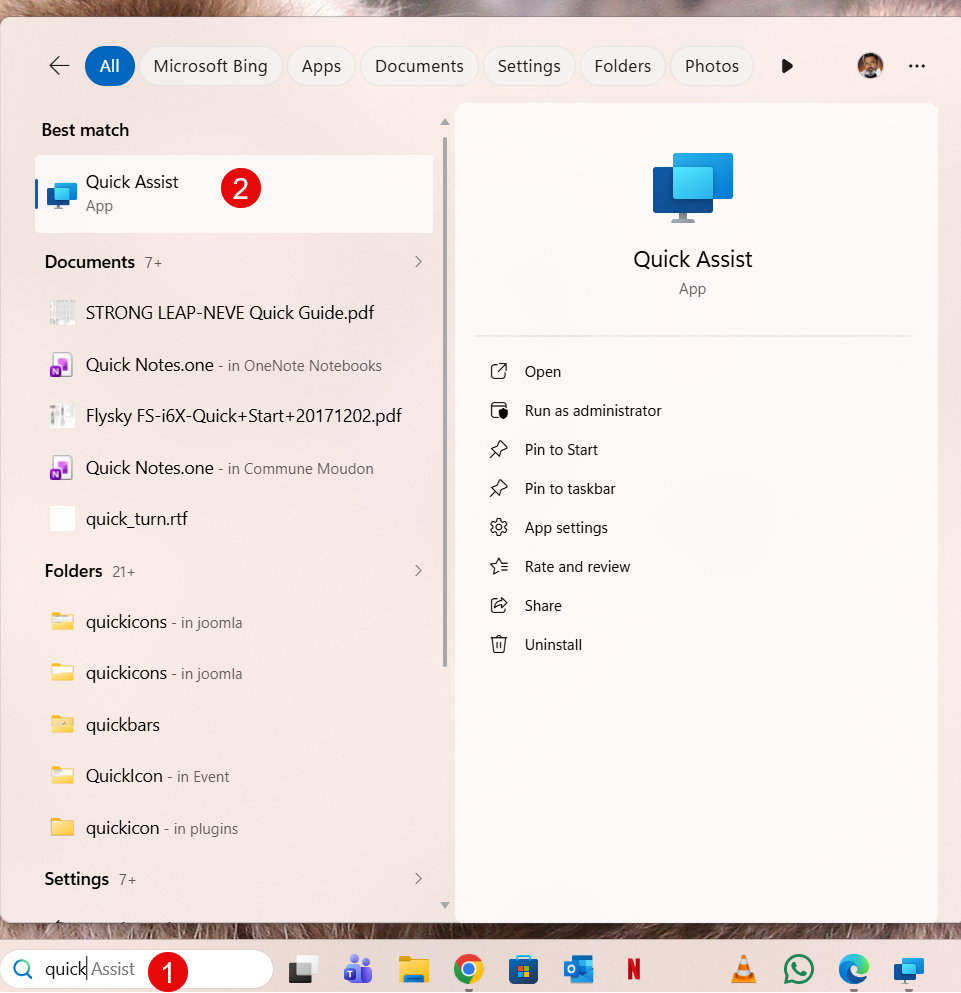
Click the Windows Search bar below your screen, type "Quick", and open the "Quick Assist" app (as shown in the image).

Privacy Check & Code
⚠️ IMPORTANT - READ FIRST:
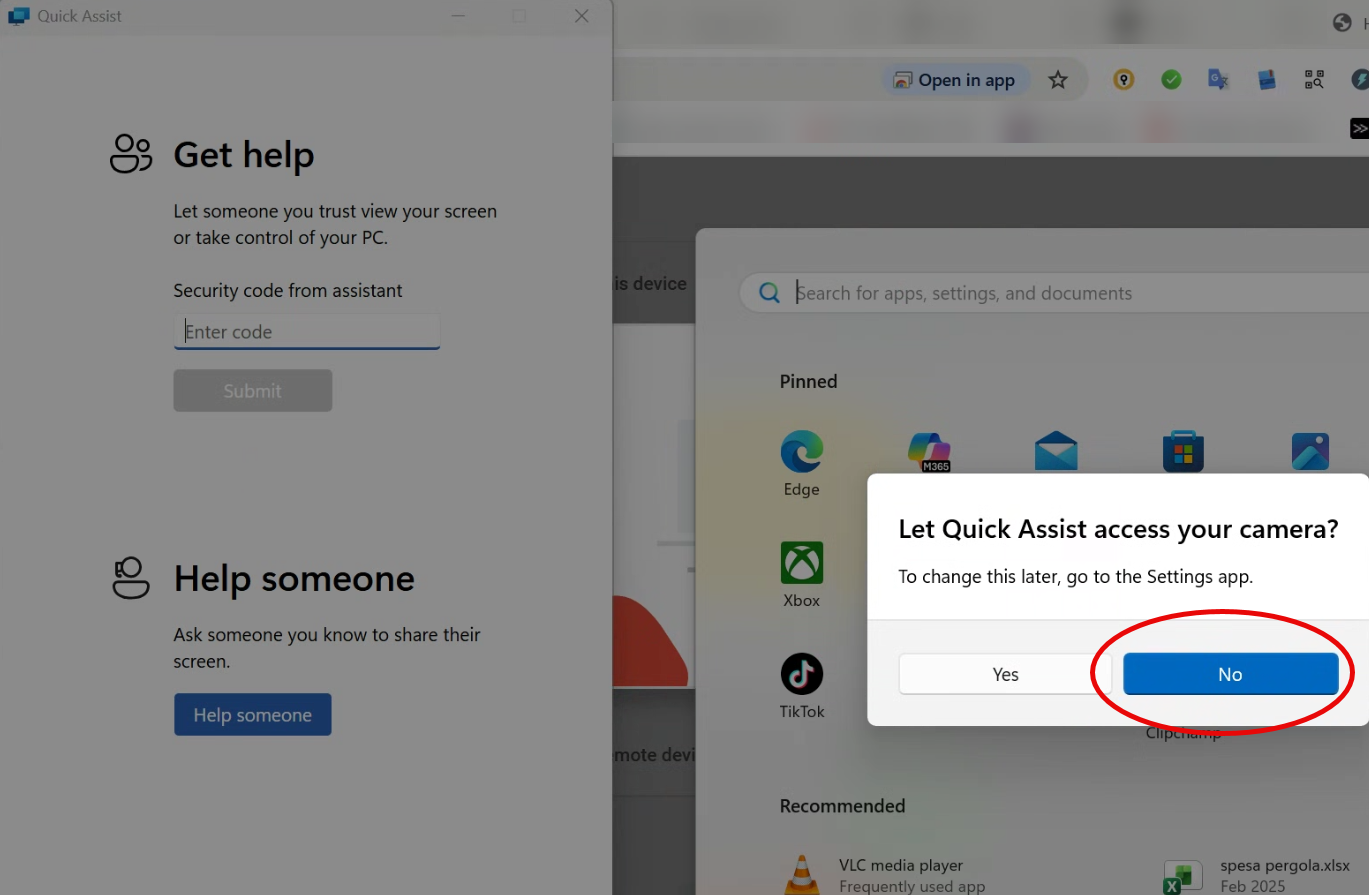
When opening the tool ( the firs time ), a popup might ask to access your Camera (as shown in the image).
Please click "NO".
We care about your Privacy:
We strictly need to view your screen to fix the computer. We do not need to see you or your room.
Finally, connect:
Enter the 6-digit security code provided by your Technician and click "Submit".


Grant Permission
When the Technician requests control, a bar will appear at the very top of your monitor (exactly like the image).
Action Required:
You must click the "Allow" button inside that bar to start the session.
If you don't click "Allow", the Technician cannot move the mouse.