
DCH Visitor Suite PRO
Official Documentation & Security Guide
Welcome to DCH Visitor Suite PRO, the ultimate analytics and "Smart Anti-Spam Shield" for your Joomla website. This guide will walk you through the advanced features, the security firewall, and how to read your traffic logs to keep your website 100% secure.
🔴 FREE vs PRO Limitation Note: Please note that while our FREE version provides excellent basic tracking, it contains a strict limitation on the number of visible Country Flags displayed in your logs. Upgrading to the PRO Suite unlocks unlimited visual flag tracking, full historical data retention, and the Advanced Security Firewall.
1. Installation & Updates First Time Installation:
- Log in to your Joomla Administrator panel.
- Navigate to System -> Install -> Extensions.
- Upload your PRO package .zip file.
- Joomla will automatically install and configure the Component, the tracking engine, and the Frontend Module.
How to Update to a Newer Version: ⚠️ IMPORTANT: DO NOT UNINSTALL the old version! If you uninstall the component, Joomla will completely wipe your database, erasing all your historical traffic data and security settings. To update safely, simply upload the new .zip package exactly as you did for the first installation (System -> Install -> Extensions). Joomla will overwrite the old files, upgrade the system, and keep all your precious data perfectly intact!
How to Publish the Frontend Counter Show off your visitor stats with our clean and fast module.
- Go to System -> Site Modules.
- Search for the DCH Visitor Counter module.
- Assign it to a visible position on your template (e.g., footer or sidebar).
2. The Command Center (Dashboard Overview)

At the top of your PRO dashboard, you will find your quick-stats overview. This gives you an immediate pulse on your website's traffic and security status:
- UNIQUE VISITORS (IP): The total number of unique devices/IP addresses that have visited your site.
- SESSIONS (VISITS): The total number of active browsing sessions.
- TOTAL HITS: The total amount of pages loaded or internal actions performed by all visitors.
- THREATS BLOCKED (Red Box): The most important metric! This shows how many malicious attempts, bad bots, or blocked countries the PRO Firewall has successfully stopped from harming your site.
3. Toolbar & Data Management

Right below the main stats, you have full control over your historical data through the PRO Toolbar:
- Time Filters (Today, Week, Month, All): Click these buttons to instantly filter your traffic log. Unlike the FREE version, the PRO suite stores unlimited historical data.
- Settings (Gear Icon): Opens the Advanced Security configuration (explained in Section 5).
- CSV (Green Button): Export your currently filtered traffic list into a .csv file. Perfect for generating reports, analyzing traffic in Excel, or sharing security logs with your IT team.
- Trash (Total Reset) Button: Want to start fresh? Use the red Trash button to instantly delete ALL analytics data and restart your public counter from zero. Caution: this action is irreversible and clears the entire database.
4. Understanding the Traffic Log & Security Badges
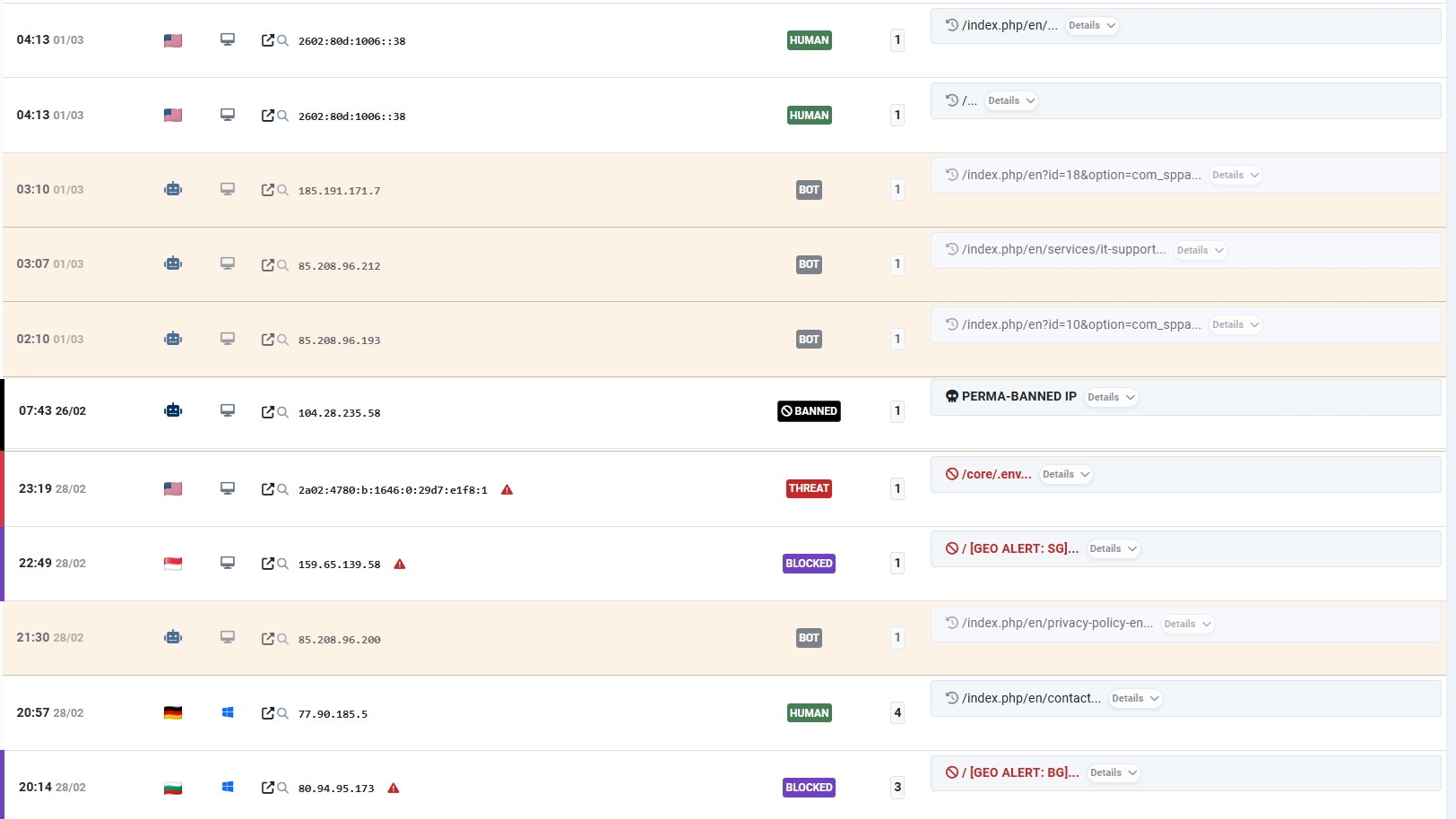
The core of the PRO version is its ability to automatically analyze and tag every single visitor. By looking at the traffic log, you will see different colored badges. Here is exactly what they mean and why the system marked them:
- HUMAN (Green): These are normal, legitimate visitors browsing your website. The system confirms they are using a standard browser.
- BOT (Grey): These are safe, automated crawlers (like Googlebot or Bingbot) indexing your site for search engines. The system tags them automatically so they don't pollute your "Human" analytics.
- THREAT (Red): Danger detected! The system marked this visit as a THREAT because the user tried to access hidden files (e.g., /.env) or used malicious keywords (like wp-admin or SQL injections) in the URL. The firewall caught them based on your "Spy Words" dictionary.
- BLOCKED (Purple): These users were instantly stopped before they could even load the page. The system marks them as BLOCKED because they are connecting from a country you restricted in the "Geo-Alert" settings.
- BANNED (Black): The ultimate penalty. This badge appears when a visitor's IP address is listed in your "IP Blacklist". They are completely denied access to your entire website and will see a fatal error.
🔴 404 ALERT: A user attempted to visit a page that does not exist (Page Not Found). The system logs this to help you identify broken links or users making typos. If the email alerts are enabled, you will receive a notification to check if it was a human error or a bot probing your site.
Tip: You can always click the "Details" dropdown on the right to see the exact URL path the user or hacker tried to visit!
5. Advanced Security Settings (The Firewall)

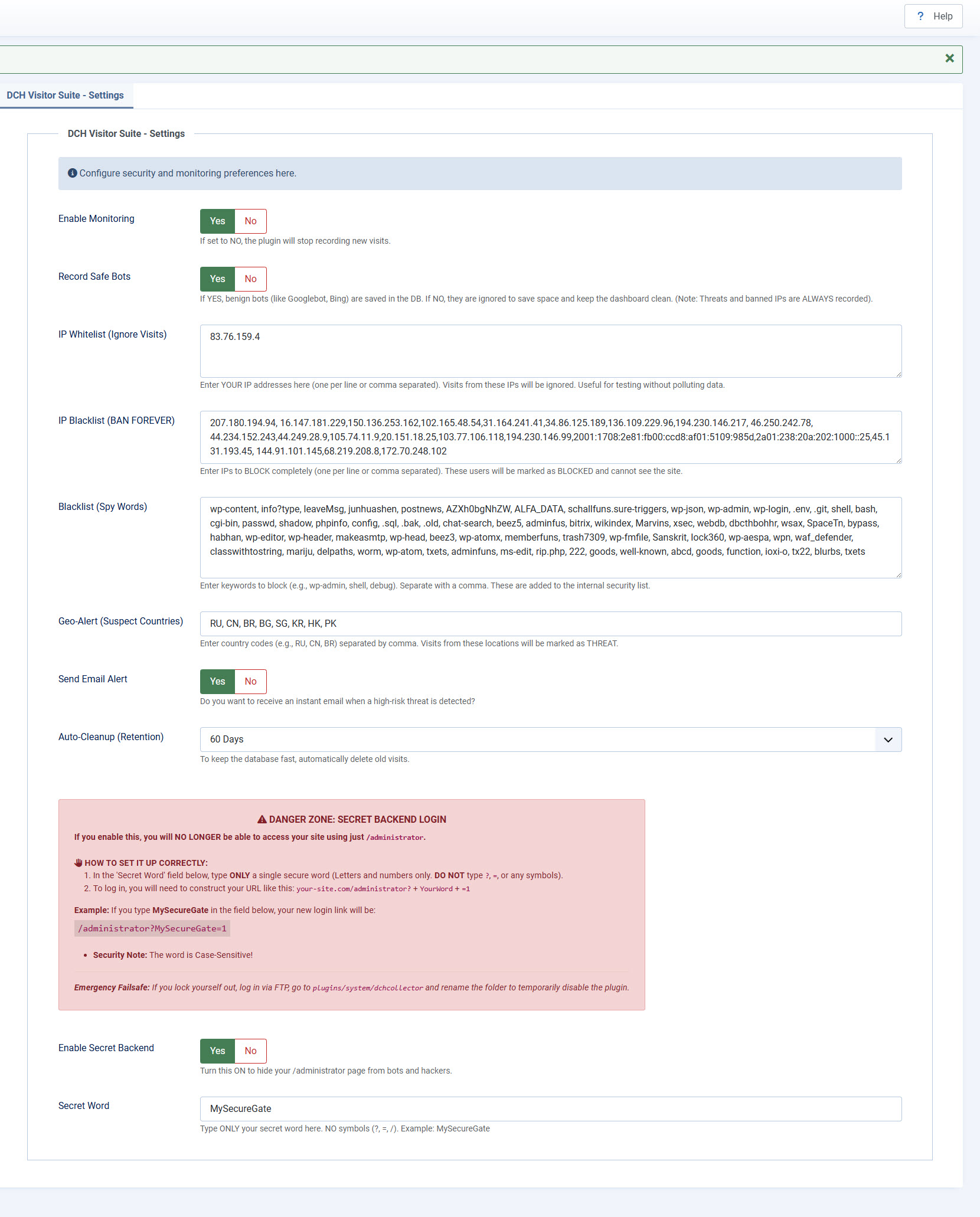
Click the blue "Settings" button in the Dashboard to access the brain of your security suite. Here is how to configure your fortress:
- Enable Monitoring: Toggle Yes/No to turn the tracking engine on or off.
- Record Safe Bots (Data Noise Reduction): Choose whether to log visits from known, harmless search engine crawlers (like Googlebot, Bing, etc.). Setting this to NO is highly recommended: it saves valuable database space and keeps your analytics dashboard clean from "bot noise", showing you only real human traffic. Security Guarantee: Do not worry about missing attacks! Even if you set this to NO, the DCH Smart Shield will always intercept and record malicious bots, threats, and banned IPs.
- IP Whitelist (Ignore Visits): Enter your own IP address here (or your office's IP). The system will stop tracking your personal visits so your analytics remain 100% accurate for real customers.
- IP Blacklist (BAN FOREVER): This triggers the black "BANNED" badge. If you spot a persistent malicious IP in your traffic log, paste it here (separated by commas). That specific attacker will be permanently blocked from viewing your website.
- 🔴 Smart 404 Auto-Ban (Active Shield): The PRO Suite includes an intelligent defense mechanism against aggressive bot scanners. If a visitor generates a single 404 error, the system allows them to continue browsing. However, if a single IP address generates 2 consecutive 404 errors within 30 seconds, the Smart Shield immediately identifies it as a malicious scan. The system will automatically inject that attacker's IP into your IP Blacklist (BAN FOREVER), lock them out with a 403 Forbidden error, and send you an instant [AUTO-BANNED] email alert.
- Blacklist (Spy Words): The pre-loaded hacker dictionary. Add any keyword (separated by a comma). If a visitor types these words in their browser address bar (e.g., trying to find WordPress login pages on your Joomla site), they will be flagged as a THREAT.
- Geo-Alert (Suspect Countries): The ultimate Military-Grade Geo-Blocking. Type the 2-letter country codes (e.g., RU, CN) you want to block. Anyone visiting from these countries will be marked as BLOCKED and restricted.
- Send Email Alert: Set this to Yes! The DCH System operates with a "Total Silent Drop" policy for known threats to keep your inbox clean. You will NOT receive email spam when users are blocked by your Geo-Alert countries or when they type known Blacklist (Spy Words). The system handles them silently. You will ONLY receive an instant critical email alert if a persistent bot or hacker triggers the Smart 404 Auto-Ban by probing your site for unknown vulnerabilities.
- Auto-Cleanup (Retention) & Infinite Counter: Keep your hosting database incredibly fast and lightweight without losing your milestones! Our unique Historical Accumulator engine separates your total visitor counts from your raw data logs. You can safely set the Auto-Cleanup to automatically delete logs older than 30, 60, or 90 days to save server space: your raw dashboard data will be cleared, but your public Total Visitor Counter on the website will safely keep growing forever!
- 🔴 Enable Secret Backend (DANGER ZONE): The ultimate "Titanium" Web Application Firewall. Turn this ON to completely block access to your standard /administrator page. If bots or hackers don't know the secret URL, the server will instantly kick them out before Joomla even loads:
Secret Word: Type a single, highly secure word to act as your new key.
- Rule 1: Use letters and numbers ONLY (no symbols like ?, =, or /).
- Rule 2: Make it complex.
- Rule 3: It is strictly Case-Sensitive!
- How to Log In: Once enabled, the standard /administrator URL will redirect to the homepage. You MUST construct your new login link by adding ? + YourWord + =1. (Example: If your secret word is MySecureGate), your login URL becomes: your-site.com/administrator?MySecureGate=1
- Emergency Failsafe: Did you forget your case-sensitive word and lock yourself out? Don't panic. Log into your server via FTP, navigate to the plugins/system/dchcollector folder, and rename it (e.g., to dchcollector_old). This will temporarily disable the firewall, allowing you to log in normally and update your secret word in the DCH settings.
CRITICAL STEP: Once you have saved your new word, you MUST go back to your FTP and rename the folder back to its exact original name (dchcollector) to reactivate the tracking and security suite!
🛡️ DCH SMART SHIELD: Technical Note on Bot Management & SEO
DCH Visitor Suite PRO is engineered to be 100% SEO-Friendly.
A common concern when activating an advanced firewall is whether it might interfere with Google's indexing process. The answer is no, thanks to our built-in dynamic recognition system:
Automatic Identification: The software natively identifies "good" bots (such as Googlebot, Bingbot, etc.) by analyzing their User-Agent and certified subnets (e.g., 66.249.x.x).
No Manual Whitelisting Required: Users do not need to manually enter Google's IP addresses. The system recognizes them and separates them from human traffic in real-time.
Log Control: Via the "Record Safe Bots" option, you can choose whether to save bot visits in the database for SEO analysis or ignore them to save space, without ever blocking their access to the site.
Intelligent Protection: The firewall only intervenes if a bot exhibits anomalous behavior or brute-force attempts, ensuring that server resources remain fully available for search engine crawlers.